Captions
Add captions to a video, timed to every word
ClipsMagic transcribes your video, finds the moments that stand on their own, and puts captions on every short it cuts: a few words at a time, timed to the word, with the word being spoken marked. You don't write or upload subtitles. Paste a YouTube link or upload the video to start.
Or upload a file, up to 5 GB. Free covers 2 videos a month.
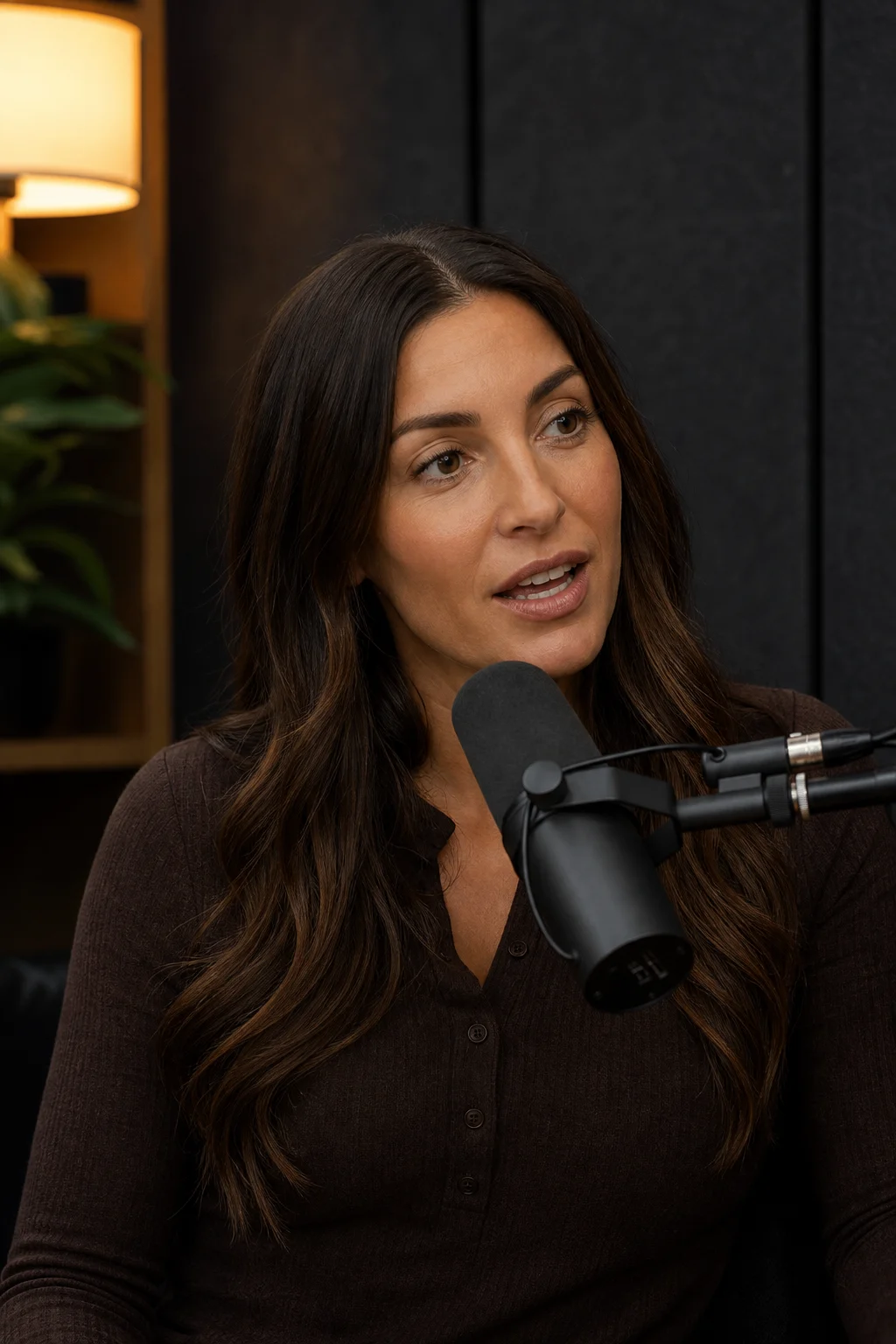
How do I add captions to my video?
- Paste the video's YouTube link, or upload the file.
- Sign in with Google or a code sent to your email.
- ClipsMagic transcribes the video and finds the moments that make sense on their own.
- Each moment becomes a 9:16 short with its captions already on it. Pick the caption style and where it sits.
- Download the short with the captions in the video.
Does it caption the whole video?
No. ClipsMagic captions the shorts it cuts from your video, because that is where captions matter most: in a feed, where a video starts with the sound off and has a second to make sense. For subtitles on the whole video, use the free YouTube transcript tool and download its SRT file, which YouTube and most editors read.
Why caption every word?
Someone scrolling in a quiet room watches with the sound off, and the captions are all they get. Big words, a few at a time, with the spoken word marked, let them follow the speaker as fast as they talk. A full sentence at the bottom of the frame asks them to read ahead and loses the rhythm of the voice.
Which caption styles are there?
Four, each shown on our sample episode below: Highlighter, Bold white, Boxed and Quiet. Each has its own page with when to use it.